

Mobile Accessibility Guide: VoiceOver, TalkBack & Developer Testing

Jeffrey Rodgers
July 24 23 min read Image Caption
Picture this: you’ve spent weeks perfecting your website’s accessibility on desktop, making sure every button is keyboard navigable and every image has proper alt text. You’re feeling pretty good about your WCAG compliance. Then a user emails you saying they can’t navigate your site on their iPhone using VoiceOver. Suddenly, you realize that mobile accessibility isn’t just desktop accessibility with a smaller screen—and that VoiceOver on iOS behaves completely differently than VoiceOver on macOS.
I’ve been auditing digital accessibility for years now, and this scenario plays out more often than you’d think. As Accessiblü’s lead auditor, I’ve tested thousands of sites across iOS and Android devices, and I can tell you with absolute certainty: mobile accessibility is a different beast entirely from desktop accessibility.
Welcome to the world of mobile accessibility—where touch gestures meet screen readers, where pinch-to-zoom becomes a lifeline, and where your carefully crafted desktop experience might completely fall apart on a 6-inch screen. If you’re a web developer working on mobile-responsive sites or native apps, this guide will help you understand the unique challenges and opportunities that iOS and Android accessibility present, based on real testing experience and actual user feedback.
The Desktop-to-Mobile Accessibility Myth: Why Fixes Don’t Always Transfer
Here’s a question I hear constantly from development teams during accessibility audits: “If we fix the accessibility issues on desktop, won’t that automatically fix them on mobile too?” The short answer is: absolutely not. This is one of the most persistent myths in web accessibility, and after testing hundreds of sites across platforms, I can tell you it leads to serious compliance gaps.
In my experience auditing sites for clients, I regularly find situations where a desktop experience passes automated and manual accessibility testing with flying colors, but the same site is completely unusable on iOS or Android devices. I’ve seen perfectly keyboard-accessible dropdown menus that can’t be operated with VoiceOver gestures. I’ve tested form inputs that work flawlessly with JAWS on Windows but become inaccessible nightmares on mobile screen readers.
Desktop and mobile accessibility are fundamentally different beasts. Your perfectly accessible desktop experience might be completely unusable on mobile devices, even if you’re using responsive design. Here’s what I’ve learned from real-world testing:
Different Interaction Models: Desktop users navigate with keyboards, mice, and screen readers like JAWS or NVDA. Mobile users navigate with touch gestures, swipes, and built-in screen readers that work completely differently. I’ve audited buttons that are perfectly keyboard accessible on desktop but impossible to activate with VoiceOver gestures on iOS because the touch target is too small or the focus order breaks down in the mobile layout.
Platform-Specific Screen Reader Behavior: This is where I see the most confusion. VoiceOver on iOS operates nothing like VoiceOver on macOS, despite sharing the same name. I’ve tested sites where developers assumed macOS VoiceOver compatibility meant iOS compatibility—it doesn’t. iOS VoiceOver uses gesture-based navigation (swipe left/right, double-tap to activate), while macOS VoiceOver uses keyboard navigation. Similarly, TalkBack on Android has its own unique interaction patterns that don’t map to desktop screen readers.
Touch Target Requirements: During mobile audits, I consistently find interactive elements that meet desktop accessibility requirements but fail mobile usability standards. Desktop accessibility focuses on keyboard navigation and focus indicators. Mobile accessibility requires proper touch target sizing (minimum 44×44 pixels on iOS, 48×48 pixels on Android) and adequate spacing between interactive elements. You can have perfectly accessible keyboard navigation that fails miserably for touch users—I see this weekly in my audits.
Viewport and Layout Considerations: Here’s where responsive design gets tricky from an accessibility perspective. I’ve tested sites where the logical heading structure on desktop becomes completely confusing when linearized on mobile. Focus order that makes perfect sense in a multi-column desktop layout might jump around erratically on a single-column mobile layout, creating navigation chaos for screen reader users.
Assistive Technology Integration: Mobile assistive technologies are deeply integrated into the operating system in ways that desktop screen readers aren’t. Features like iOS Switch Control or Android’s Select to Speak have no desktop equivalent and require specific implementation considerations that I rarely see addressed in desktop-focused accessibility work.
The bottom line from years of testing: you absolutely must test and optimize for mobile accessibility separately from desktop accessibility. I’ve audited too many sites where teams assumed desktop fixes carried over to mobile—they were wrong every time.
Why Mobile Accessibility Matters More Than Ever
Mobile devices aren’t just convenient alternatives to desktop computers—for many people with disabilities, they’re primary computing devices. During my accessibility audits, I regularly interact with users who rely exclusively on mobile devices for web access. According to recent studies, over 60% of web traffic comes from mobile devices, and for users with certain disabilities, that percentage is even higher.
In my experience testing with actual users, smartphones and tablets often provide better accessibility features out of the box than many desktop setups, making them the preferred choice for users with visual impairments, motor disabilities, and cognitive differences. I’ve worked with users who struggle with desktop screen readers but navigate confidently using iOS VoiceOver or Android TalkBack.
But here’s the kicker from an auditor’s perspective: mobile accessibility isn’t just about compliance with ADA or Section 508 requirements. During client consultations, I emphasize that it’s about creating experiences that work for everyone, everywhere. When you nail mobile accessibility, you’re not just checking a legal box—you’re opening your digital doors to millions of potential users who might otherwise bounce from your site or app.
From a testing standpoint, I’ve seen too many organizations focus exclusively on desktop accessibility compliance while completely ignoring mobile users. This approach creates significant legal and business risks that I document in every audit where mobile accessibility is neglected.
The Mobile Accessibility Landscape: Different Devices, Different Rules
Before we dive into the technical specifics of iOS and Android accessibility, let’s acknowledge a fundamental truth: mobile accessibility is more complex than desktop accessibility. You’re dealing with different interaction models (touch vs. mouse and keyboard), varying screen sizes, different assistive technologies, and platform-specific accessibility services.
Unlike desktop environments where screen readers like JAWS or NVDA dominate, mobile accessibility is deeply integrated into the operating system itself. iOS has VoiceOver, Switch Control, and Voice Control built right in. Android offers TalkBack, Select to Speak, and Live Transcribe as part of the core experience. This integration is fantastic for users—but it means developers need to understand how their code interacts with these platform-specific technologies.
iOS Accessibility: The Apple Ecosystem Advantage
Apple has long been considered a leader in accessibility, and iOS continues that tradition with robust built-in features. When developing for iOS devices—whether that’s iPhones, iPads, or even Apple Watches—you’re working within an ecosystem designed with accessibility in mind from the ground up.
VoiceOver on iOS: Not Your macOS VoiceOver
VoiceOver is Apple’s screen reader, but here’s something crucial that I have to explain to developers constantly: VoiceOver on iOS operates completely differently from VoiceOver on macOS. They share a name and some underlying technology, but the user interaction patterns are as different as driving a car versus riding a motorcycle.
After years of testing with both platforms, I can tell you that iOS VoiceOver uses gesture-based navigation instead of keyboard commands. Users swipe left and right to move between elements, double-tap to activate, and use various multi-finger gestures for advanced navigation. There’s no keyboard involved in typical iOS VoiceOver navigation—it’s all about touch gestures and spatial awareness.
This fundamental difference means that accessibility testing on macOS with VoiceOver tells you absolutely nothing about how your site will behave with iOS VoiceOver. During my audits, I’ve tested sites that developers swore were VoiceOver-compatible because they worked on macOS, only to discover they were completely unusable on iOS devices.
In my testing experience, this manifests in several specific ways. I’ve found perfectly keyboard-accessible dropdown menus that become impossible to navigate with iOS VoiceOver gestures. I’ve encountered dynamic content updates that announce correctly on macOS VoiceOver but remain silent on iOS. I’ve tested form validation that works flawlessly with desktop screen readers but creates confusing focus jumps on iOS devices.
As a developer, this means your focus management and semantic markup become even more critical, but in different ways than desktop. Elements that seem logically ordered during desktop testing might become confusing when navigated with swipe gestures. During mobile audits, I regularly find issues where the visual layout makes sense, but the VoiceOver navigation order is completely illogical because developers only tested with desktop screen readers.
Here’s where many developers stumble during my audits: they assume that if their site works with JAWS on desktop or even VoiceOver on macOS, it’ll work with VoiceOver on iOS. In my experience testing thousands of sites, this assumption is wrong more often than it’s right. The mechanics are fundamentally different and require specific testing and optimization.
For web developers, iOS Safari’s implementation of accessibility APIs is generally excellent, but you need to test specifically with VoiceOver. Elements that seem logically ordered on desktop might become confusing when navigated with swipe gestures. Dynamic content updates that work fine with desktop screen readers might not announce properly in VoiceOver.
iOS-Specific Accessibility Features
Beyond VoiceOver, iOS offers several accessibility features that web developers should understand:
Switch Control allows users with motor disabilities to navigate using external switches or simple gestures. Your web content needs to be fully keyboard accessible and have clear focus indicators for Switch Control to work effectively.
Voice Control lets users navigate and interact with apps using spoken commands. This feature relies heavily on proper labeling and semantic markup—the same principles that make your site work with screen readers.
Guided Access helps users with cognitive disabilities stay focused by limiting app functionality. While this is primarily an app-level feature, web developers should understand that some users may have restricted interaction capabilities.
Dynamic Type and Bold Text allow users to adjust text size and weight system-wide. Your responsive designs need to handle these adjustments gracefully, ensuring content remains readable and functional even at maximum text sizes.
iOS Development Considerations
When developing for iOS devices, whether through responsive web design or native apps, keep these platform-specific considerations in mind:
The iOS accessibility rotor is a powerful navigation tool that lets VoiceOver users jump between headings, links, form controls, and other elements. Make sure your heading structure is logical and your landmarks are properly defined. A well-structured rotor experience can turn a frustrating site into a delightful one.
iOS handles focus management differently than desktop browsers. When content changes dynamically, you may need to manually manage focus announcements using ARIA live regions or by programmatically moving focus to new content.
Touch targets on iOS need to be at least 44×44 points (about 44 pixels on non-retina displays) to be easily accessible. This applies to buttons, links, and any interactive elements. Don’t forget that users might be wearing gloves, have motor difficulties, or simply have larger fingers.
Android Accessibility: Open Source, Multiple Approaches
Android’s open-source nature means there’s more variation in accessibility implementations across devices and manufacturers. However, Google has made significant strides in recent years to standardize and improve Android accessibility across the ecosystem.
TalkBack: Android’s Screen Reader
TalkBack is Android’s built-in screen reader, and while it shares some similarities with VoiceOver, it has its own interaction patterns and quirks. TalkBack users typically swipe right to move forward through content and swipe left to move backward. They double-tap to activate elements and use various gestures for additional functions.
One key difference between TalkBack and VoiceOver is how they handle web content. TalkBack’s interaction with web browsers can vary depending on the browser being used. Chrome for Android generally provides the best accessibility experience, but you’ll want to test with other popular browsers like Firefox and Samsung Internet as well.
Android-Specific Accessibility Services
Android offers several accessibility services that developers should consider:
Select to Speak allows users to touch text on the screen to have it read aloud. This feature relies on proper text structure and semantic markup to function effectively.
Live Transcribe provides real-time transcription of speech, which can benefit users who are deaf or hard of hearing when consuming video content on your site.
Sound Amplifier enhances audio for users with hearing difficulties. While this primarily affects media content, developers should ensure their audio implementations work well with system-level audio enhancements.
High Contrast Text and Large Text options affect how content is displayed. Like iOS Dynamic Type, your designs need to handle these system-level changes gracefully.
Android Development Challenges
Android’s diversity is both a strength and a challenge for accessibility. Different manufacturers may implement accessibility features differently, and older Android versions might not support the latest accessibility APIs. Here are key considerations:
Android’s accessibility services rely heavily on proper content descriptions and semantic markup. Unlike iOS, where VoiceOver is consistent across devices, Android accessibility can vary significantly between manufacturers and Android versions.
Focus management on Android can be trickier than iOS, especially when dealing with complex layouts or dynamic content. You may need to implement custom focus handling for certain interaction patterns.
Android’s back button behavior affects accessibility navigation in ways that don’t exist on iOS. Make sure your web apps handle back button navigation properly and maintain logical focus flow.
Common Mobile Accessibility Issues and Solutions
Now that we’ve covered platform-specific considerations, let me share some common mobile accessibility issues that I encounter regularly during audits, along with practical solutions based on real-world testing.
Touch Target Sizing and Spacing
One of the most common mobile accessibility issues I find during audits is touch targets that are too small or too close together. I can’t tell you how many times I’ve tested sites where developers meticulously followed desktop accessibility guidelines but completely ignored mobile touch requirements. Both iOS and Android recommend minimum touch target sizes (44 pixels for iOS, 48 pixels for Android), but I regularly audit sites where interactive elements are half that size.
During my testing with actual users who have motor disabilities, I’ve seen firsthand how inadequate touch targets create real barriers. Users with tremors, limited fine motor control, or who use assistive devices struggle with tiny buttons that might be perfectly functional for developers testing on their laptops.
The solution is straightforward but requires mobile-specific testing: ensure all interactive elements meet platform-specific size requirements and include adequate spacing between targets. This isn’t just about accessibility—during usability testing, I’ve found that proper touch target sizing improves the experience for all users. I recommend testing with your own fingers on actual devices, then testing with assistive devices or in challenging conditions to understand real-world usage patterns.
Form Input Challenges
Mobile form input presents some of the most complex accessibility challenges I encounter during audits. Virtual keyboards cover screen content in ways that desktop testing can’t simulate. Autocorrection interferes with assistive technology in platform-specific ways. Field validation messages that work perfectly with desktop screen readers often fail to announce properly on mobile devices.
I’ve tested forms that pass every automated accessibility scanner but become completely unusable when tested with VoiceOver or TalkBack on actual devices. The visual focus gets lost behind virtual keyboards. Error messages appear in locations that mobile screen readers don’t detect. Input types that work fine on desktop trigger inappropriate virtual keyboards on mobile.
Based on extensive mobile form testing, here’s what actually works: implement proper labeling for all form fields using both visible labels and programmatic associations. Use appropriate input types to trigger the right virtual keyboard (numeric for numbers, email for email addresses). Ensure error messages are programmatically associated with their corresponding fields using ARIA attributes that mobile screen readers can detect. Test with actual devices to verify that virtual keyboards don’t obscure important content or break navigation flow.
Video and Media Accessibility
Mobile video consumption has exploded, but during my audits, I consistently find media accessibility implementations that fail mobile testing. Captions that are perfectly readable on desktop become illegible on mobile screens. Video controls that work well with mouse interaction become impossible to operate with touch or assistive technology.
I’ve tested video players where developers assumed responsive design would handle mobile accessibility automatically. It doesn’t. Caption sizing, control positioning, and alternative input methods all require mobile-specific consideration and testing.
Ensure your video players provide accessible controls that work with both touch and assistive technology. Caption text should be appropriately sized for mobile viewing—I recommend testing captions at various device sizes and text scaling levels. Transcript options should be easily accessible on smaller screens, not hidden behind mobile-unfriendly interface patterns.
Navigation and Menu Patterns
Mobile navigation patterns like hamburger menus and collapsible sections can create accessibility challenges. Users with assistive technology need clear indication of menu states, and navigation should remain logical regardless of how content is visually organized.
Implement proper ARIA attributes for expandable navigation elements, ensure focus management works correctly when menus open and close, and provide clear indication of current page or section.
Testing Strategies for Mobile Accessibility: Manual Testing Is Essential
Here’s a hard truth about mobile accessibility testing that I learned early in my auditing career: automated tools will only catch a fraction of the issues that matter to real users. Unlike desktop accessibility testing, where automated scanners can identify many common problems, mobile accessibility testing requires manual testing with real devices and real assistive technology. In my experience conducting thousands of mobile accessibility tests, manual testing is often the only way to catch critical mobile accessibility issues.
After years of auditing mobile experiences, I can tell you exactly why you can’t rely on automated tools for mobile accessibility:
Gesture-Based Navigation Can’t Be Automated: How do you automate a test for “swipe right to navigate to the next element” or “double-tap to activate”? You can’t. I’ve tested sites where automated tools found zero accessibility issues, but real VoiceOver users couldn’t complete basic tasks because the gesture navigation was broken. These interaction patterns are fundamental to mobile accessibility but can only be tested by actually performing the gestures on real devices.
Context-Sensitive Touch Interactions: During my mobile audits, I regularly find accessibility issues that only manifest under specific conditions—screen size, orientation, dynamic content changes—that automated tools can’t simulate effectively. I’ve tested buttons that are accessible in portrait mode but become unreachable in landscape mode, or form inputs that work fine on larger tablets but fail on smaller phones.
Platform-Specific Behavior Variations: Here’s something I’ve learned from extensive cross-platform testing: iOS VoiceOver behaves differently in Safari than in other browsers. Android TalkBack varies between manufacturers and Android versions. Samsung’s browser handles accessibility differently than Chrome. These platform-specific nuances can’t be accounted for by automated tools—they require hands-on testing with actual devices.
Real-World Usage Patterns: During user testing sessions, I’ve observed that mobile users often interact with devices while walking, wearing gloves, or in challenging lighting conditions. These real-world factors affect accessibility in ways that automated tools simply can’t measure. I’ve found accessibility barriers that only appear when users are actually holding and manipulating physical devices.
The bottom line from my testing experience: if you’re not manually testing your mobile accessibility with actual iOS and Android devices, you’re missing critical issues that will impact real users. Automated tools are helpful for catching obvious problems like missing alt text, but they’re just the starting point for mobile accessibility testing.
iOS Testing Approach
Start by enabling VoiceOver on an actual iOS device—not the iOS Simulator, not a browser’s device emulation mode, but a real iPhone or iPad (Settings > Accessibility > VoiceOver). Navigate your site or app using only VoiceOver gestures—no peeking at the screen. This hands-on testing is absolutely essential because VoiceOver’s gesture-based navigation can’t be simulated or automated.
Pay attention to the logical order of elements, clarity of announcements, and ease of completing common tasks. Focus particularly on dynamic content changes, form interactions, and navigation patterns—these are areas where desktop accessibility testing often misses mobile-specific issues.
Test with different text sizes enabled (Settings > Accessibility > Display & Text Size > Larger Text) to ensure your responsive design handles dynamic type gracefully. Again, this requires real device testing because the way iOS scales text and adjusts layouts can’t be accurately simulated in desktop browsers.
Don’t forget to test landscape and portrait orientations, as focus order and layout changes can affect accessibility differently in each orientation. Automated tools can’t catch these orientation-specific accessibility issues—you need to physically rotate the device and test navigation patterns in both orientations.
Android Testing Approach
Enable TalkBack on a real Android device—not an emulator, not browser developer tools, but an actual Android phone or tablet (Settings > Accessibility > TalkBack). Navigate your content using only TalkBack gestures, which are different from iOS VoiceOver gestures. This hands-on testing is the only way to understand how TalkBack users actually experience your content.
Test across different Android versions if possible, as accessibility implementations can vary significantly between versions. This is particularly important for Android because the platform’s diversity means accessibility behavior can differ substantially between devices and manufacturers—something no automated tool can account for.
Test with high contrast and large text options enabled to ensure your designs remain functional and readable with system-level accessibility features activated. Like iOS, these system-level changes affect how content is rendered and navigated in ways that can only be properly evaluated on real devices.
Consider testing with multiple browsers on Android, as accessibility support can vary between Chrome, Firefox, and manufacturer-specific browsers. Each browser may implement accessibility APIs slightly differently, creating unique issues that only manual testing will reveal.
Cross-Platform Testing Strategy
Develop a systematic manual testing approach that covers both platforms with real devices. Create test scenarios that focus on core user tasks rather than just technical compliance. Can a user successfully navigate your main menu using only VoiceOver gestures? Can they complete a purchase using TalkBack? Can they access help information when the device is rotated to landscape mode?
Remember: mobile accessibility testing cannot be automated effectively. The gesture-based navigation, platform-specific behaviors, and real-world usage patterns that define mobile accessibility can only be evaluated through hands-on testing with actual iOS and Android devices.
Document platform-specific issues and solutions in your development process. What works perfectly on iOS might need adjustment for Android, and vice versa. More importantly, solutions that work perfectly on desktop might be completely ineffective on mobile platforms, requiring entirely different approaches.
This is why the “fix it once on desktop and it works everywhere” approach fails so dramatically for mobile accessibility. You need dedicated mobile testing processes, not just responsive design testing in desktop browsers.
The Accessiblü Approach to Mobile Accessibility
Here’s where traditional accessibility auditing falls short, and I say this as someone who’s been on both sides of this process: you get a comprehensive list of mobile accessibility issues across iOS and Android platforms, but then what? Your development team is left to figure out platform-specific solutions, test across multiple devices, and somehow prioritize fixes across different operating systems and device types.
During my years conducting traditional audits before joining Accessiblü, I watched countless development teams struggle with this disconnect. They’d receive detailed reports about mobile accessibility failures, but lacked the expertise to implement proper solutions. Worse, they’d fix issues based on desktop testing assumptions and create new mobile accessibility problems in the process.
At Accessiblü, our Managed Accessibility Ops approach recognizes that mobile accessibility is an ongoing operational challenge, not a one-time audit problem. As lead auditor, I work directly with development teams to not just identify mobile accessibility issues, but to implement and test solutions across iOS and Android platforms simultaneously. This hands-on approach means developers get real-time feedback during the development process, not after deployment.
From my testing experience, I know that mobile accessibility requires real devices, real assistive technology, and real user scenarios. Our concierge-style approach means development teams get direct access to accessibility experts who have hands-on experience with VoiceOver, TalkBack, and the nuances of mobile accessibility across different platforms and devices. When I’m testing a client’s mobile experience, I’m not just checking boxes—I’m evaluating actual usability with the assistive technologies their users rely on.
Instead of receiving a static report that might be outdated by your next deployment, our agile model provides ongoing support as your mobile experiences evolve. When iOS releases a new accessibility feature or Android updates its accessibility services, I’m already testing and adapting our clients’ implementations. This is particularly important for mobile accessibility because platform updates can break previously working accessibility features—something I’ve seen happen repeatedly during my auditing career.
The traditional audit model treats accessibility like a one-time code review. But mobile accessibility, in my experience, behaves more like security testing—it requires continuous monitoring, regular testing, and adaptive responses to platform changes.
Moving Forward with Mobile Accessibility
Mobile accessibility isn’t just about making your existing desktop experience work on smaller screens—something I’ve had to explain to countless development teams during audits. It’s about understanding the unique interaction patterns, assistive technologies, and user needs that exist in mobile environments. Whether your users are navigating with VoiceOver on iOS or TalkBack on Android, they deserve experiences that are not just functional, but genuinely usable and enjoyable.
From my years of testing mobile accessibility across thousands of sites and applications, I can tell you that the key to successful mobile accessibility is understanding that it’s an ongoing process, not a destination. As mobile platforms evolve and new assistive technologies emerge, your accessibility strategy needs to evolve too. I’ve seen too many organizations treat accessibility as a one-time checklist item, only to discover that platform updates have broken their carefully implemented solutions.
By building accessibility considerations into your mobile development workflow from the start—and testing with real devices and real assistive technology—you’ll create better experiences for all users while meeting compliance requirements across platforms. This isn’t just theoretical advice; it’s based on practical experience working with development teams to implement sustainable mobile accessibility practices.
Remember: good mobile accessibility isn’t just about following guidelines—it’s about creating digital experiences that work for everyone, everywhere, on every device. Your users will thank you, your legal team will thank you, and you might just discover that accessible design makes your mobile experiences better for everyone. After years of testing and auditing mobile accessibility, I can confidently say that the organizations that prioritize mobile accessibility from the start consistently deliver better user experiences across the board.
 November 05 12 min read
You’ve just spent hours building the perfect grade tracker in Excel. Color-coded rows show which students are excelling (green) versus…...
August 25 15 min read
By Shannon (Conformance Specialist & Front End Developer) and Rick (Lead Auditor & AT User), Accessiblü Digital accessibility extends far…...
 July 29 14 min read
By Shannon Nix, Lead Conformance Specialist, and Rick Flores, Lead Auditor at Accessiblü You know that moment when you think…...
 June 23 12 min read
Let’s be honest—diving into WCAG (Web Content Accessibility Guidelines) can feel like trying to read a technical manual written by…...
May 22 14 min read
We’ve been knee-deep in accessible multimedia training sessions lately, and wow—there’s so much to know to get this right! With…...
 May 02 9 min read
May 15th marks Global Accessibility Awareness Day (GAAD), a worldwide event dedicated to raising awareness about digital accessibility and inclusion.…...
 October 31 11 min read
Over the years of working with businesses on accessibility conformance, we’ve seen the same mistakes made over and over again.…...
 September 23 8 min read
JCC Digital Co-op, and The Jewish Community Centers online compliance for its members....
 August 27 9 min read
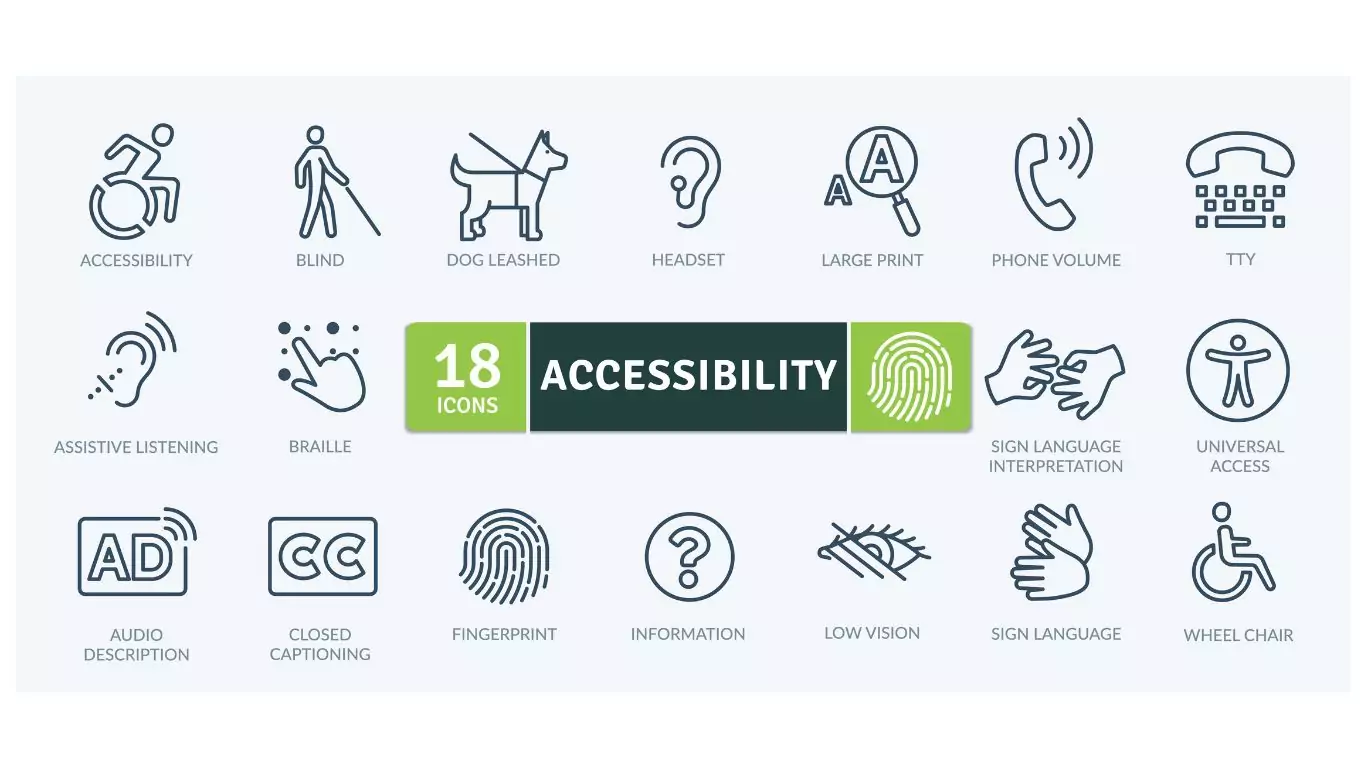
Digital accessibility, universal access, and web design are opportunities for good web design....